


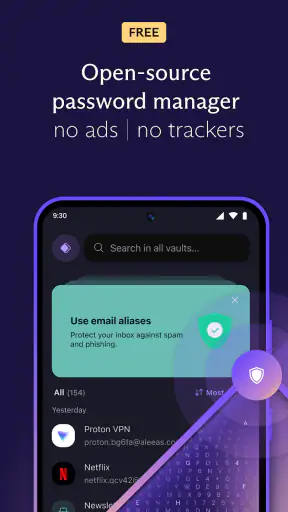
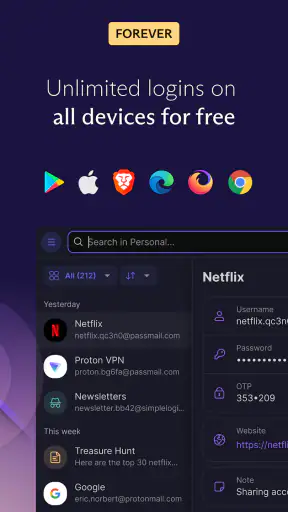
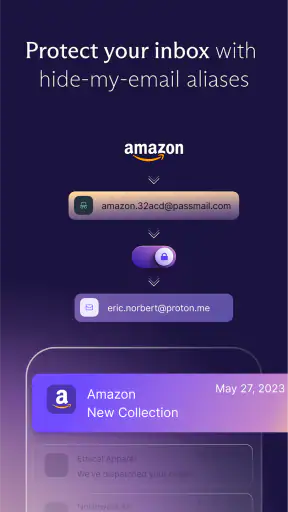
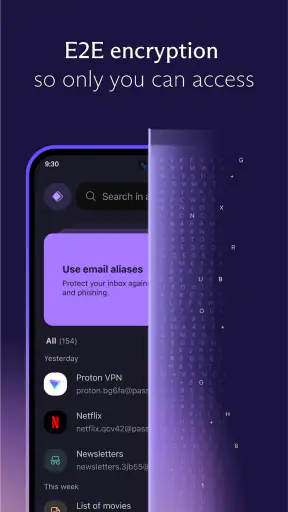
I usually notice a password manager most when it saves me from a small but annoying interruption: stopping what I am doing, searching for a forgotten password, and trying to work out whether a login belongs to the right account. Proton Pass is built around removing that interruption. It keeps passwords, passkeys, login details, and two-factor authentication codes together, then helps fill them when I sign in. After using it as a productivity app rather than treating it as a technical security project, I found its main benefit quite simple: it turns secure login habits into a routine that takes less effort.
That focus makes sense for an app from Proton AG, a developer already associated with privacy-oriented services. The app is free to start, carries an Everyone content rating, and has become a widely used choice on Android, with more than a million installs and a 4.8 average from roughly 57 thousand ratings. Those figures do not replace personal testing, of course, but they do suggest that the experience is approachable enough for ordinary users, not only people who enjoy configuring security tools.
Why the all-in-one login approach matters
The capability I kept coming back to was the combination of password storage, autofill, passkeys, and 2FA in one place. Many people understand that every account should have a different password, but the practical obstacle is remembering which password belongs where. A manager solves that problem, while autofill solves the second obstacle: entering the details accurately on a small screen.
Proton Pass is useful because it does not force me to treat each part of the login process as a separate task. I can save a login, use a generated password instead of reusing an old one, and reach the associated two-factor code without moving between several unrelated apps. The result is not dramatic in the way a new social or entertainment app can be dramatic. It is more like removing a series of tiny delays from every week.
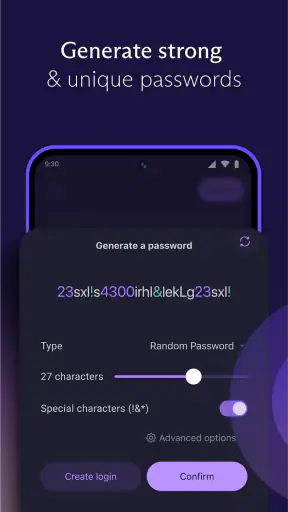
That distinction is important. This is not an app that makes online accounts magically safe. A weak device passcode, careless approval of an unexpected login, or a compromised email account can still create problems. What it does well is make the safer decision easier at the moment when convenience normally wins. If a site asks me to create another account, I am much more likely to use a unique password when the manager can create and fill it without making me remember it.
The passkey support is especially relevant for people who are tired of passwords but are not ready to change their entire way of signing in. Passkeys can reduce dependence on memorized secrets, while the manager gives them a recognizable home alongside traditional credentials. I would not describe that as a reason to abandon every password immediately. Some services still use passwords, some account recovery processes still depend on them, and the exact sign-in flow can vary between websites and apps. The advantage is having both approaches available instead of being locked into one.
What daily use feels like
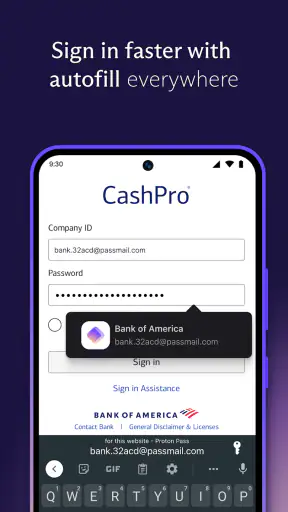
On Android, the important moment is not opening the manager for its own sake. It is reaching a login screen and seeing whether the saved entry is available through autofill. When that works, I can select the correct account, confirm the fill, and continue. The time saved is small for one login, but it becomes noticeable when I am switching between work, shopping, banking, travel, and personal services during the same week.
I found it helpful to think of the vault as a filing system rather than a box of passwords. New entries should have clear names, especially when one service has separate personal and work accounts. A vague label can create uncertainty later, while a precise one makes autofill decisions much easier. This is one of those small habits that is not obvious from a store summary but has a direct effect on whether the app feels effortless or cluttered.
When I save a new credential, I prefer to do it immediately rather than postponing the decision. If I leave an account unsaved, I am more likely to reuse an existing password the next time I return. Saving at the moment of registration also gives me a chance to check that the username is correct and that I have not accidentally stored a temporary code instead of the actual password.
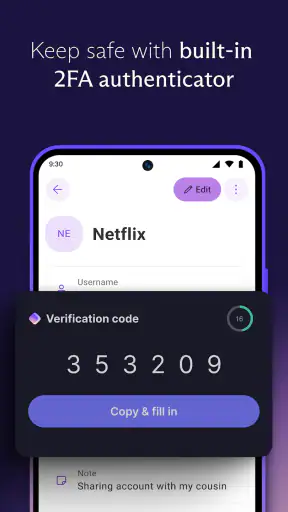
The same principle applies to two-factor authentication. Keeping the second factor close to the login can be convenient, but convenience should not become automatic approval. I still read the service name and account information before using a code. A code from the wrong entry is a warning that something needs checking, not merely a minor filing mistake. Proton Pass reduces the number of places I need to look; it does not remove the need to pay attention.
A realistic everyday example
Imagine setting up a new phone while travelling. You need access to email, a booking account, a transport service, and a work dashboard. Without a manager, this can turn into a hunt through notes, old messages, browser prompts, and reset-password screens. With Proton Pass prepared in advance, I can look up the relevant entries, use autofill where supported, and retrieve the second-factor information without relying on memory.
The useful part is not simply speed. It is consistency under pressure. Travel, a new device, or an urgent work task makes people more likely to choose a familiar password or postpone security steps. Having the credentials organized means the safer route is also the less stressful route. I would still make sure I had access to the account needed to recover the vault before leaving for a trip, because a password manager is most useful when it is part of a broader recovery plan rather than the only thing I trust.
This scenario also shows why naming and organization matter. If several entries look similar, the manager cannot decide which account I intend to use. I need to keep the records understandable, remove obsolete entries, and distinguish between personal and professional identities. The app can store the information, but I remain responsible for keeping the collection tidy.
Where it differs from ordinary browser saving
Browser-based password saving is often enough for someone who uses one browser on one device and wants the least possible setup. It can feel immediate, and it may be the right choice for a person who rarely changes devices or accounts. Proton Pass is more appealing when login information needs to be treated as a dedicated collection rather than as a side feature of browsing.
The difference becomes clearer when I use passkeys and 2FA alongside passwords. A browser may handle some of these tasks well, but the experience can be less consistent when I move between browsers, apps, and devices. A dedicated manager gives me a more deliberate place to review what I have saved. That extra structure is valuable for people with many accounts, although it also means learning one more interface and making a little time for setup.
It is also worth comparing it with writing passwords in notes or keeping them in a spreadsheet. Those methods may appear convenient at first, but they make searching, updating, and autofill harder, and they encourage the dangerous habit of keeping reusable secrets in an unstructured place. Proton Pass is a better fit when the goal is not merely remembering information but using unique credentials without adding daily friction.
The tradeoffs I noticed
The first tradeoff is dependence. Once I move many accounts into a manager, access to that manager becomes important. That is not a flaw unique to Proton Pass; it is part of choosing centralized credential storage. I would not install it and immediately delete every other record before learning how the app behaves on my devices and making sure I understand the recovery route for my account.
The second is that autofill is not equally smooth everywhere. Different Android apps and websites present login fields in different ways, and some sign-in screens may not identify themselves perfectly. When the suggestion does not appear, I may need to open the manager, search manually, or paste the information. That is still preferable to guessing a password, but it interrupts the ideal one-tap experience.
Passkeys bring their own adjustment period. They can make signing in simpler once a service supports them, but the wording and placement of passkey options are not always familiar. Someone who expects every account to behave like a traditional username-and-password form may initially wonder where the saved credential is. I recommend changing one or two important accounts first, then learning the flow before attempting a large cleanup.
There is also a practical cost question. The app itself is free, while in-app purchases range from around five dollars to nearly one hundred and twenty dollars per item. That broad range means I would check the available plan and its billing terms inside the app before assuming that every capability belongs to the free experience. For a person with only a handful of accounts, paying may not feel necessary. For someone managing a larger collection or wanting the full experience across their routine, the value depends on how much repeated login work it removes.
The current version is 1.40.3 and it supports Android 8.1 or later. That makes it accessible to many existing phones, but I would still keep the app and operating system updated where possible, particularly for a tool that handles sensitive credentials. Older hardware may also make autofill feel less responsive than it would on a newer device, so expectations should be based on the phone as well as the app.
Who benefits most from it
I think Proton Pass is strongest for people who have accumulated many accounts and are ready to stop reusing passwords. It is also a good match for anyone who frequently moves between websites and Android apps, because the combination of autofill and a dedicated vault reduces the need to remember which browser saved which login. People who use passkeys on supported services can benefit from having those credentials handled alongside their remaining passwords rather than managing two separate systems.
It is particularly useful for households or individuals who regularly create new accounts. The best results come when the app is used from the beginning: generate or choose a unique credential, save it with a clear name, and let autofill handle future sign-ins. If I only import old passwords and never improve them, I gain convenience but miss much of the security benefit.
I would be more cautious about recommending it to someone who has very few online accounts, never changes devices, and is already satisfied with a browser’s built-in manager. The additional app may feel like unnecessary organization. I would also hesitate to recommend a centralized vault to a person who is unwilling to maintain a strong primary account password or think about recovery access. A password manager cannot compensate for ignoring the key that protects the collection.
People who need highly specialized enterprise controls, complicated shared-account administration, or a workflow designed around a particular organization should compare Proton Pass carefully with the tool their workplace already supports. The app’s appeal is its straightforward personal productivity angle. That simplicity is a strength for individual users, but it may not answer every requirement of a large managed environment.
Small habits that make the app better
My first tip is to clean entries while they are still fresh. After changing a password, I check that the saved record reflects the new credential instead of assuming the update succeeded. This avoids the frustrating situation where autofill repeatedly supplies an old password and makes a normal login look broken.
My second tip is to use meaningful labels and, where relevant, separate accounts by purpose. “Mail” is less helpful than a label that identifies the service and whether it is personal or work-related. This becomes important when two accounts share the same email domain or when a service has separate login pages.
My third tip is to treat 2FA entries as verification aids, not as permission to rush. Before accepting a code, I confirm that the login request came from the service I intended to open. Keeping the code near the credential is convenient, but the security decision still belongs to me.
Finally, I would test the workflow before an urgent moment. Sign in to a low-risk account, try autofill, search for the record manually, and make sure the passkey or code flow is understandable. That short rehearsal exposes confusing entries while there is still time to fix them.
My recommendation
After using Proton Pass as a daily productivity tool, I see its strongest quality in the way it connects several login chores into one repeatable habit. Passwords, passkeys, autofill, and 2FA are more useful together than as isolated features, especially when I am signing in on a phone and do not want to copy information between apps.
I would recommend it to someone who wants to replace reused passwords with a manageable system and who values a privacy-focused developer. I would not present it as a completely automatic security solution, and I would not expect every website or app to offer a flawless autofill experience. There is some setup, some organization, and a responsibility to protect access to the vault.
For me, that balance is worthwhile. The free starting point makes it easy to try, the Everyone rating keeps it suitable for a broad audience, and the strong user response gives it credibility without being the reason to install it. Proton Pass is at its best when security stops feeling like a separate project and becomes the normal way I log in.


